
Abstract
InformixHQ is the Java HTML5 administration GUI provided by IBM for Informix Dynamic Server (IDS) from version 12.10.FC13 or 14.10.FC1. The guide describes it as “a modern web console for visualizing, monitoring, and managing your Informix server instances”. It is the only supported tool for control of some Informix internal features, such as tasks scheduled within the database engine. It does not replace AGS Server Studio & Sentinel which has a full SQL development environment and more mature monitoring capabilities.
Previous relevant Oninit technical articles are:
By default, the HQ Web GUI runs over unencrypted HTTP connections. Modern browsers now make it harder to access any HTTP Web sites and expect HTTPS instead which has SSL encryption applied to prevent network traffic from being exposed in plain text. This article is a “quick start” guide to making that change on an existing HQ installation.
Content
Examples in this article were produced using a Docker container from informix-dockerhub with Informix Dynamic Server (IDS) updated to 14.10.FC12W5 and HQ 3.1.0 installed (both from Fix Central) – which were the latest at time of writing. Java 11 (used here) or Java 17 is required for recent HQ versions.
With HQ Server and one Agent both running over HTTP on the same host as the Informix instance being monitored, there are no changes required in either properties files (after copying examples to actual default file names), though we do recommend the following should be changed from 1 second to 1 minute to reduce system load:
To implement HTTPS, you first need to create an SSL keystore and certificate. See:
The above contains examples, and the following is a minimal implementation with IBM GSKit (Java “keytool” can be used instead):
- Key store “hq.p12” and stash file “hq.sth” are created containing a certificate labelled “InformixHQ”.
- PKCS 12 without PQC are the cryptography standards expected by HQ.
- The hostname must be declared with both “-dn” and “-san_dnsname” options for browsers to accept it.
- Password “password” has been used in both contexts above: you should obviously change this to your own.
- The certificate will expire in around 20 years (365 x 20 days).
These changes are required to the server properties:
Port 9090 was more convenient in the test environment. The more conventional port would be 443:
The second parameter changed above is less obvious, but the comments make it clearer:
The following changes to the agent properties were necessary:
The above is documented here:
We have requested that IBM fix the following in the next InformixHQ release:
- Include ssl.* parameters in the agent example properties.
- Remove user.* parameters from the above documentation page as they are only server parameters.
Other differences are minor and relate to non-essential functionality.
After stopping and restarting the HQ Server and Agent, the following results when attempting to connect in a browser (Microsoft Edge was used, others such as Chrome will be similar) either to HTTP on port 8080 (which is redirected) or HTTPS on port 9090 directly:
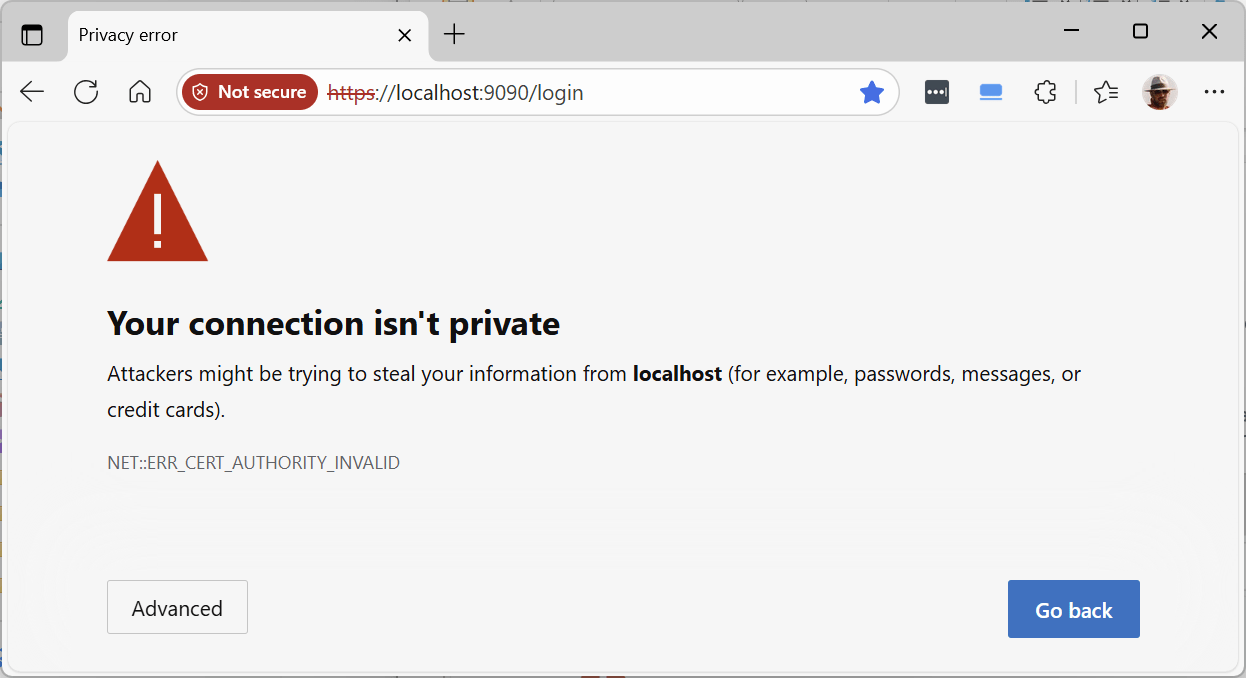
NET::ERR_CERT_AUTHORITY_INVALID means that the self-signed certificate did not come from a known trusted source. The following process fixes that for future connections.
Firstly, we need to save the certificate on the client:
1. Click on “Not secure” at the left of the address bar as shown above:
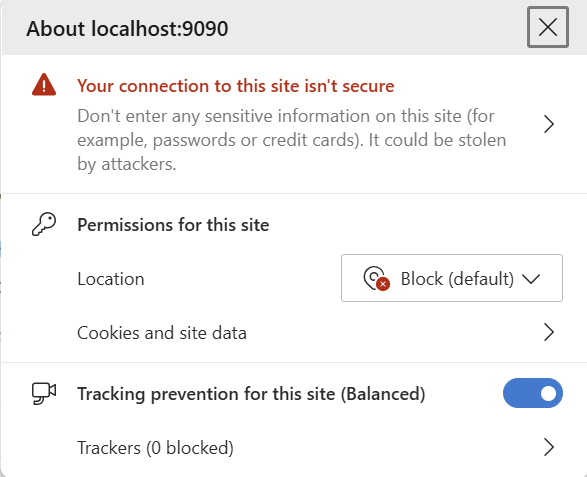
2. Click on the top section:
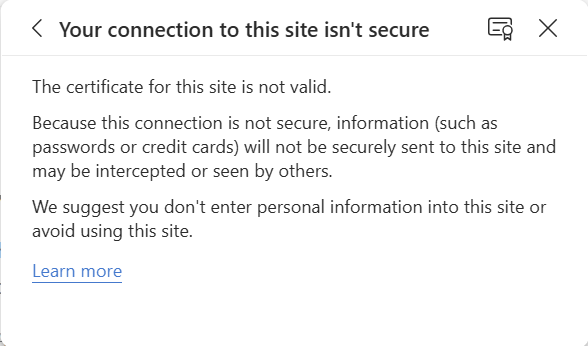
3. Click on the certificate symbol:
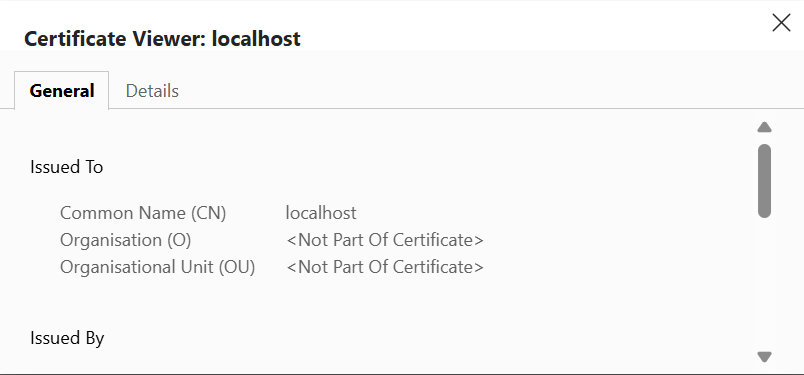
4. Click on “Details”:
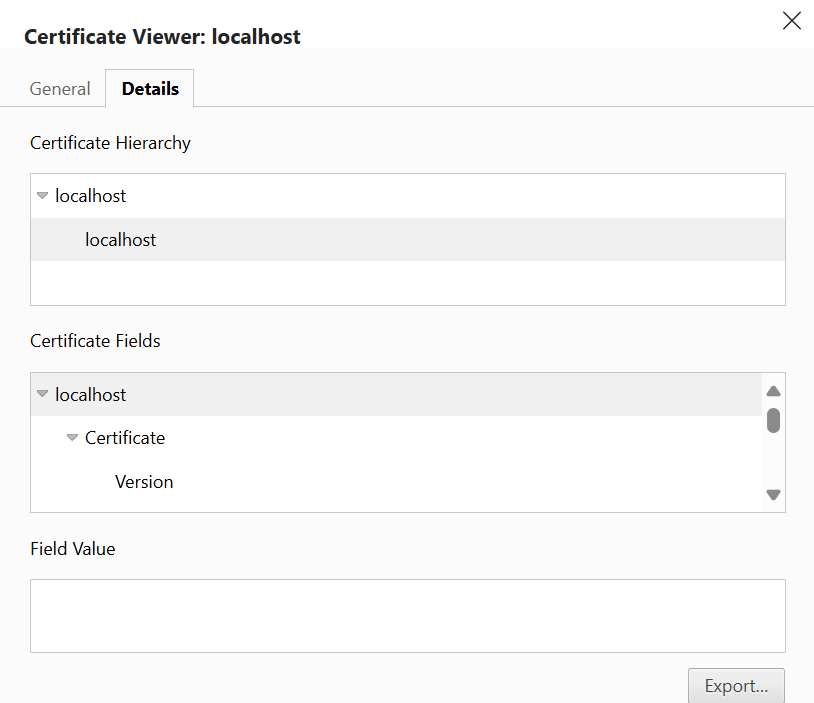
5. Click on “Export”:
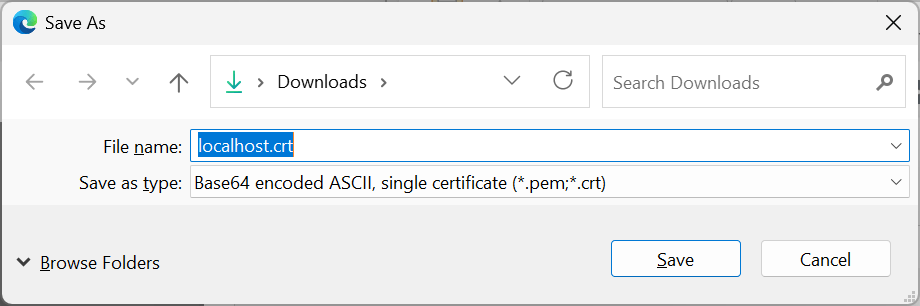
6. Change the name to something more meaningful if you wish, and save with the default type and suffix.
You now have a certificate file on the client that you could share with colleagues. The import process is:
1. Open Microsoft Edge and click the “Settings and more icon” (three horizontal dots) in the top-right corner.
2. Select “Settings” from the menu that appears.
3. In the left-hand navigation pane, click on “Privacy, search, and services”:
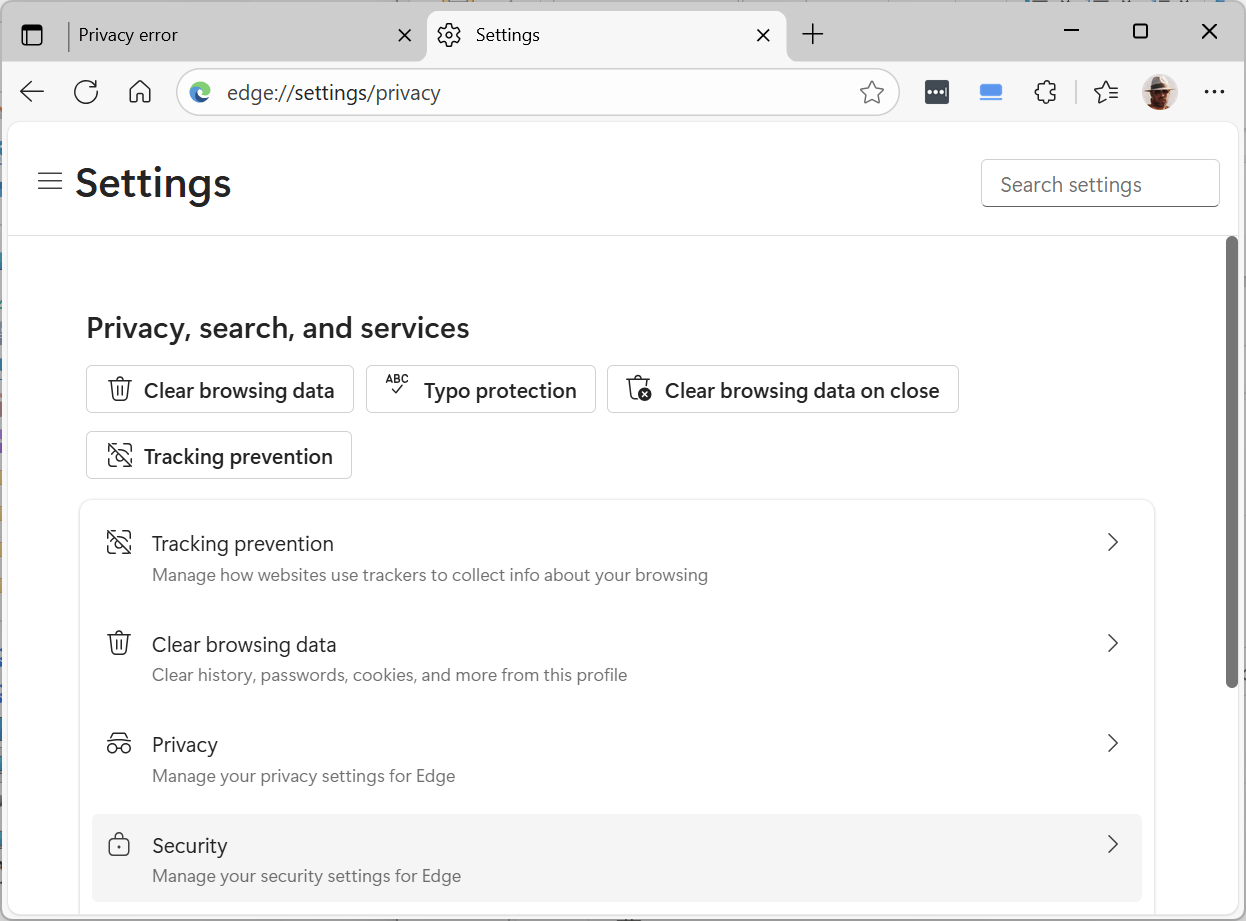
4. Click on “Security”:
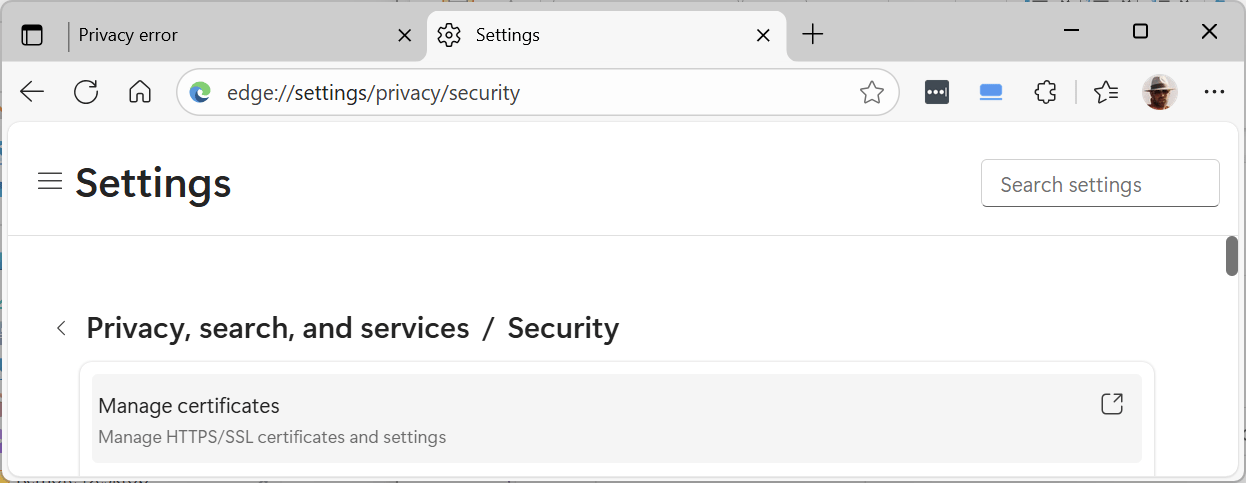
5. Click on “Manage certificates”:
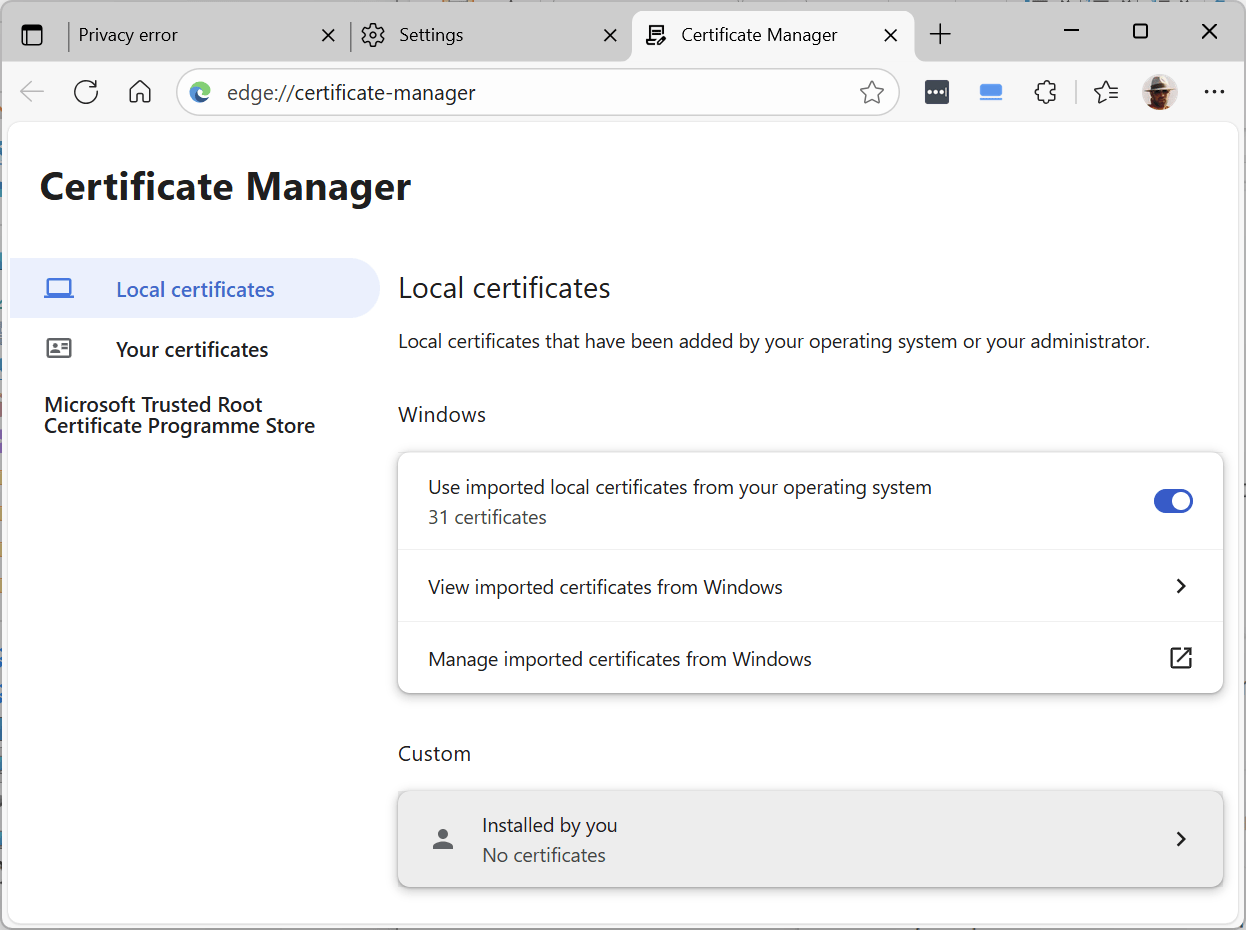
6. Click on “Installed by you”:
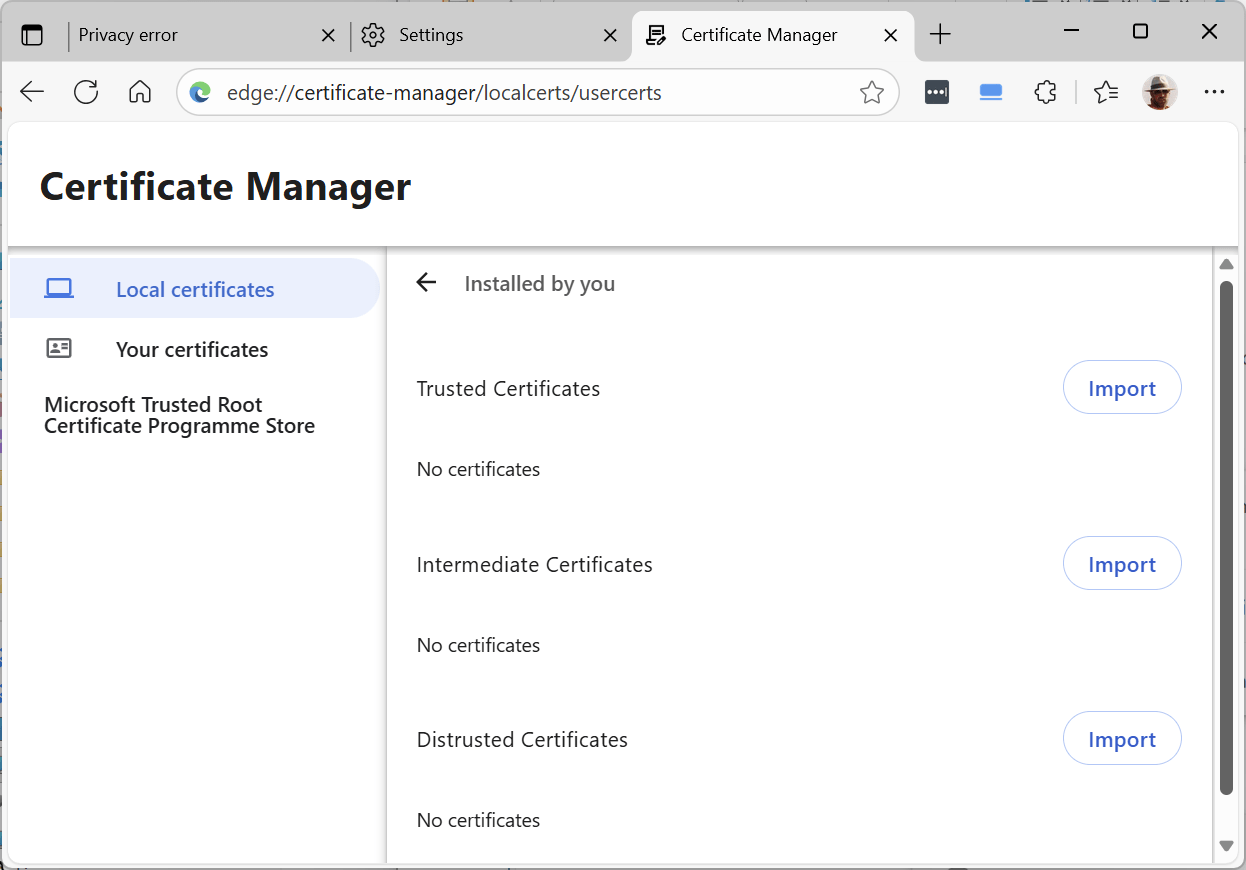
7. Click the Import button alongside “Trusted Certificates” (after deleting any previous attempts):
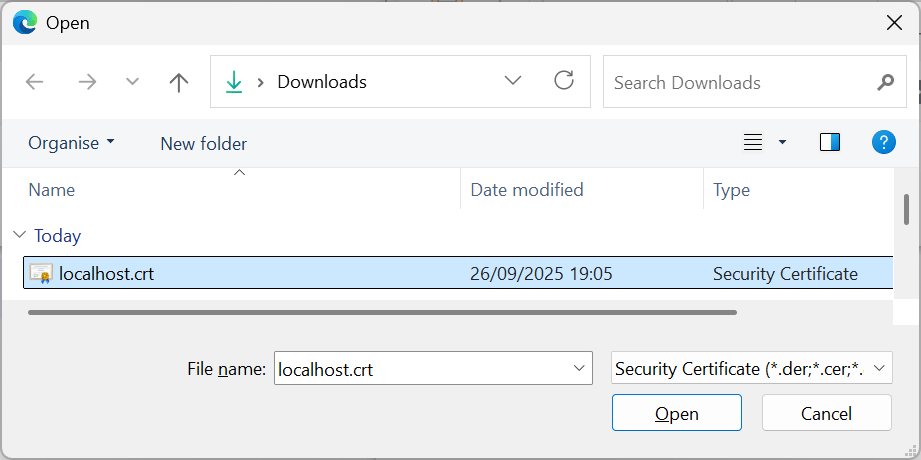
8. Select your file and press “Open”:
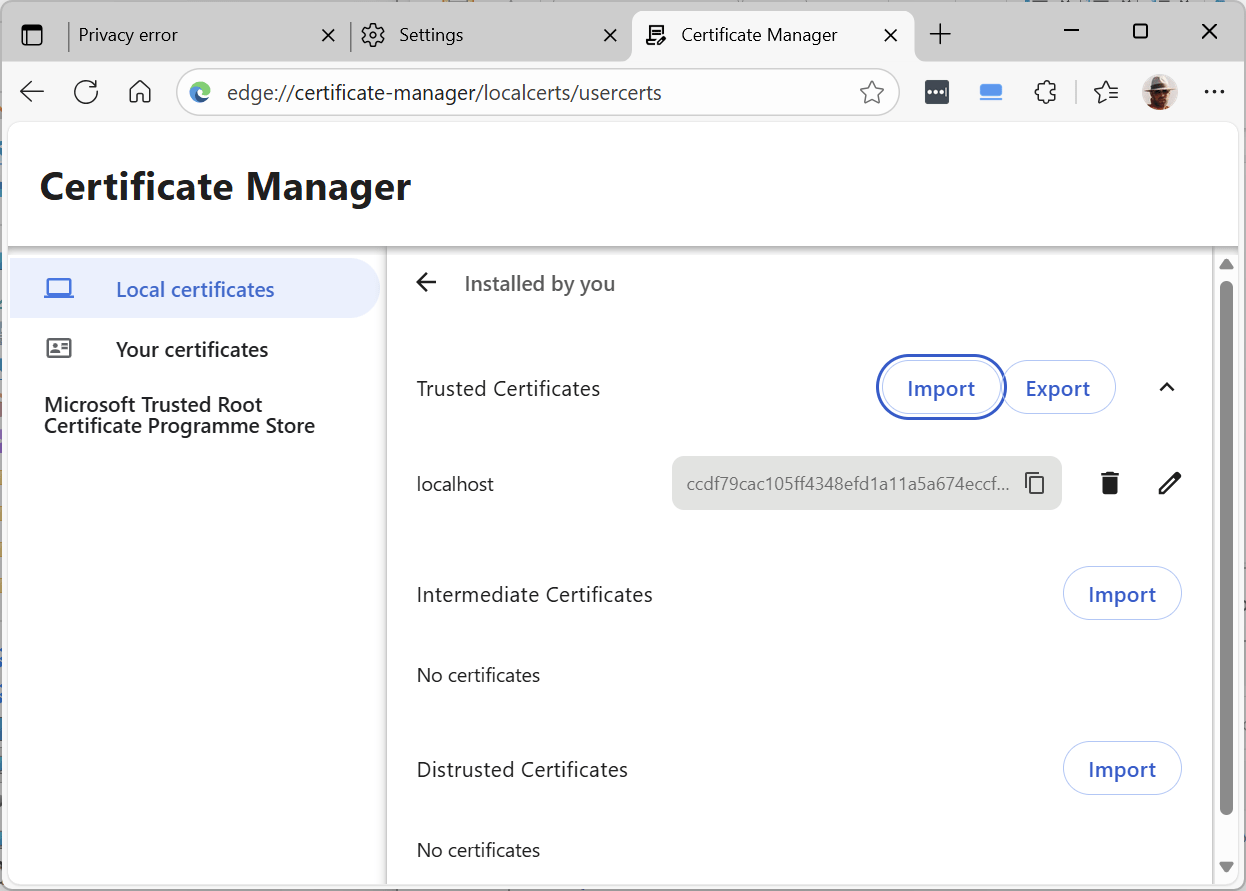
9. Your certificate should be visible as above and you now be able to open the HQ Web GUI without any security warnings:
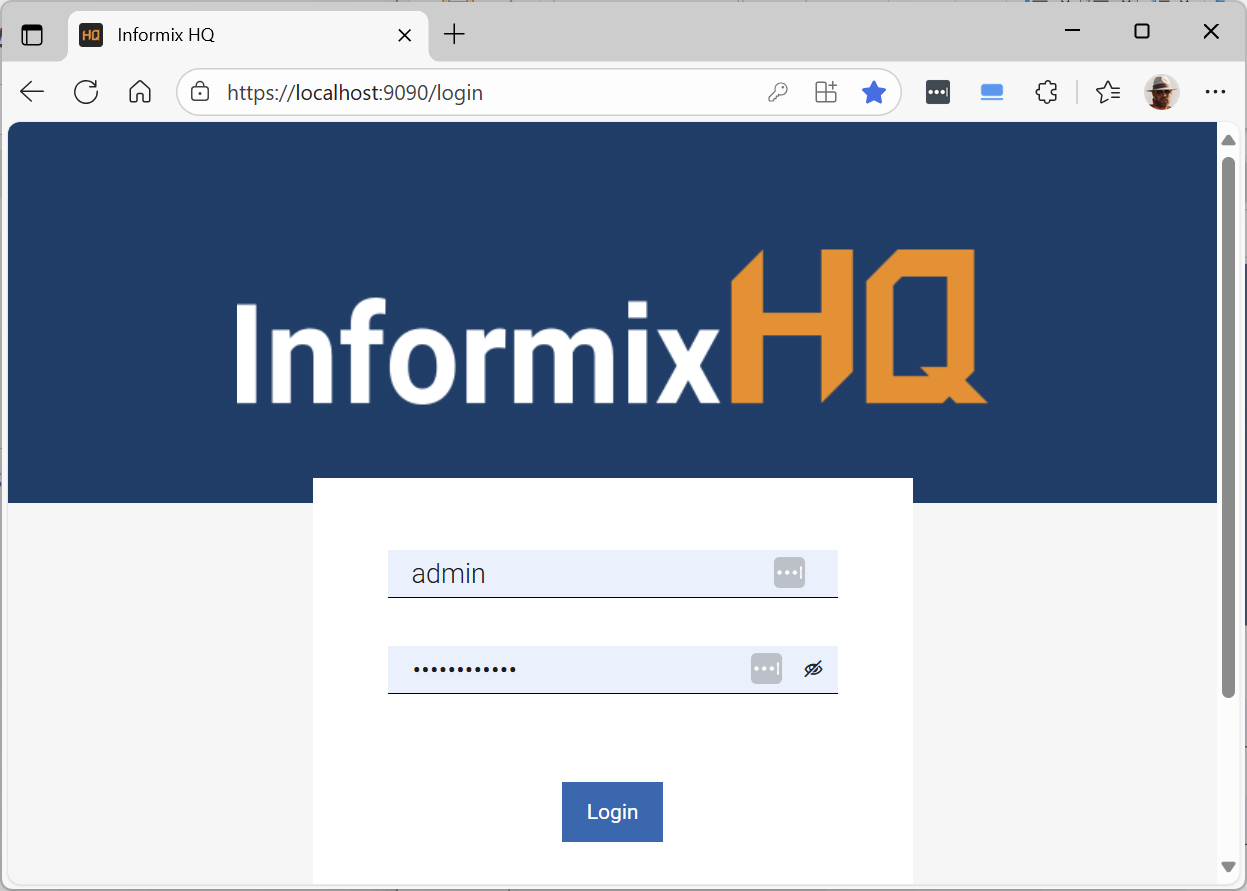
10. If not, try pressing “Shift-F5” for a full page reload.
Note also that HQ 3.1.0 can be installed as a Progressive Web App (PWA) for quick access and a seamless app-like experience:
1. Click on the icon just to the left of the favourites asterisk:
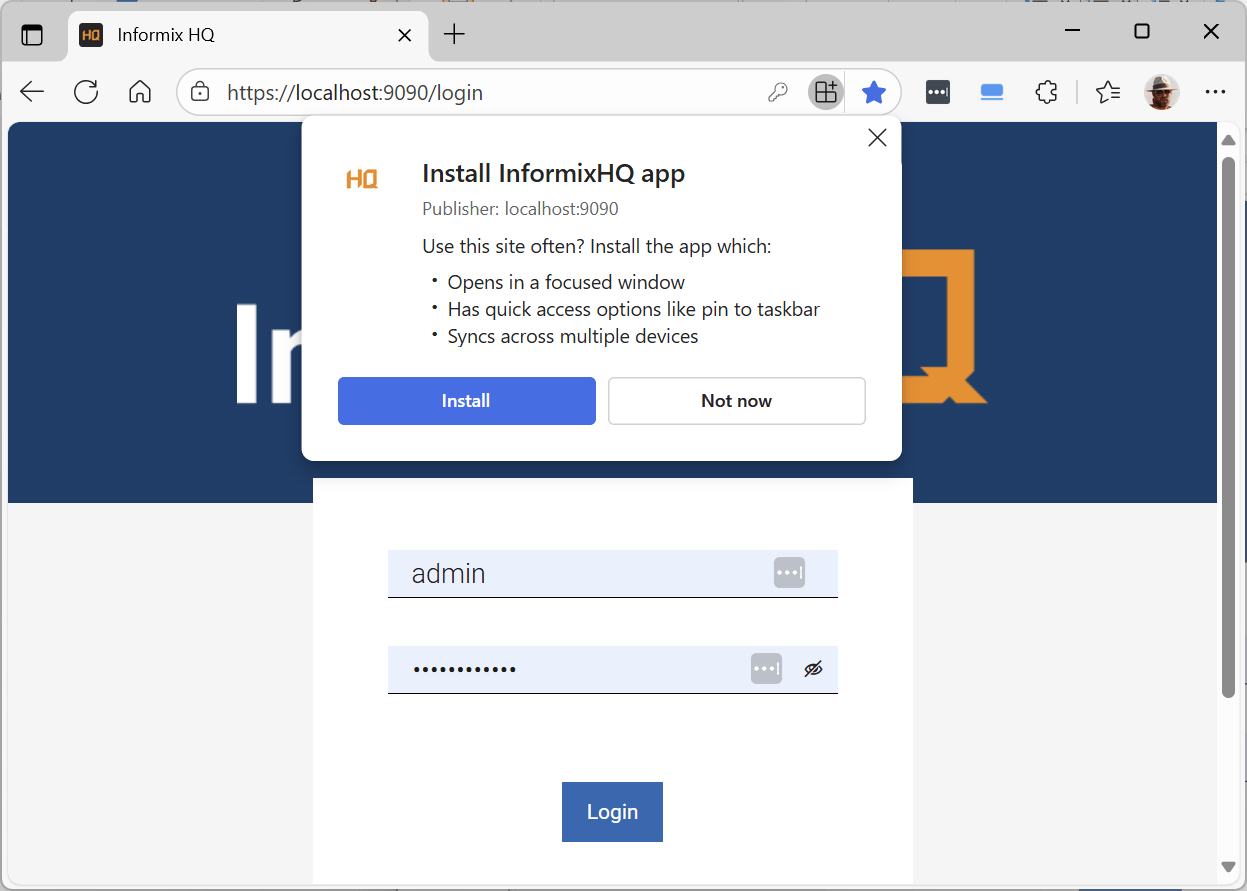
2. Press “Install”:
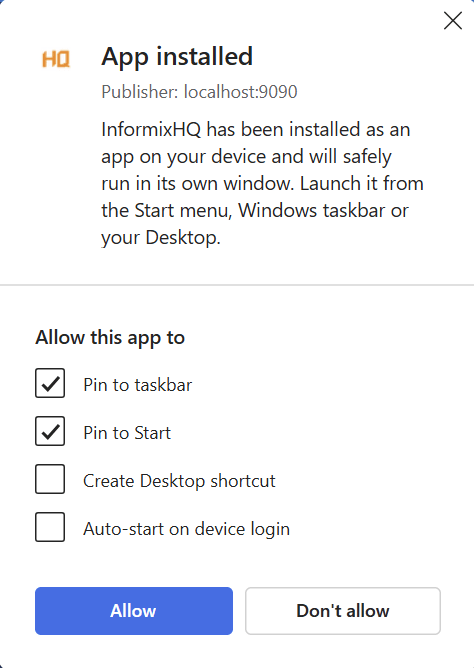
3. Check the options you prefer and press “Allow”.
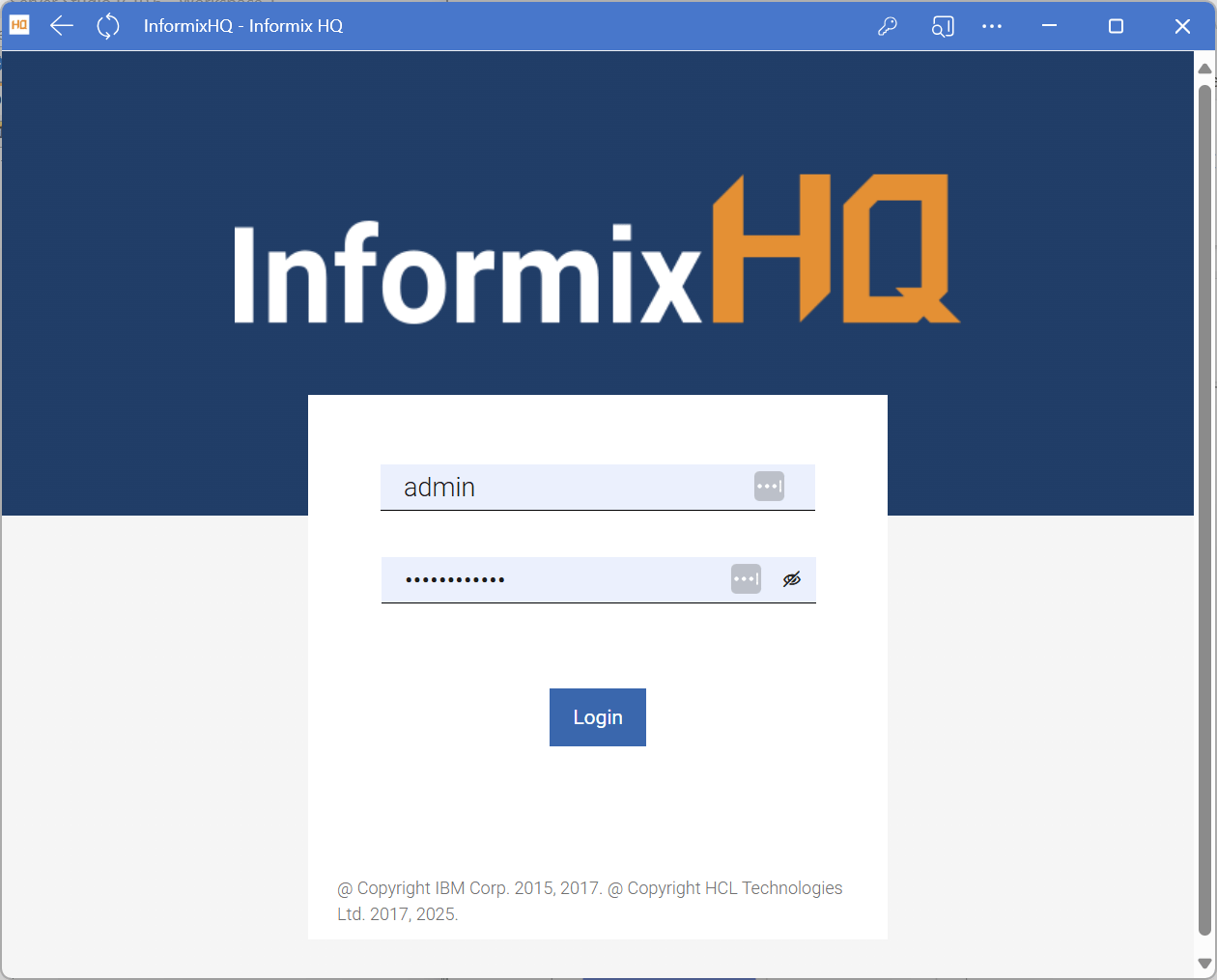
4. It then looks like this and can be run from the taskbar:
Caveats
HQ versions other than 3.1.0 might have significant differences, as will implementing in a browser other than Microsoft Edge.
Conclusion
Configuring the latest HQ to use HTTPS is very simple with the commands and parameter settings provided. Installing a self-signed certificate on a user’s desktop is harder, and the procedure will vary for other browsers: for external access, you would want to acquire one from a Certificate Authority matching your domain name.
Disclaimer
Suggestions above are provided “as is” without warranty of any kind, either express or implied, including without limitation any implied warranties of condition, uninterrupted use, merchantability, fitness for a particular purpose, or non-infringement.
Contact Us
If you have any questions or would like to find out more about this topic, please contact us.